Cargando el producto…
Precio de origen
$ 16.346
$ 18.167
+ flete y aranceles — se calculan al cotizar
Compra protegida
Puerta a puerta
Aduana incluida
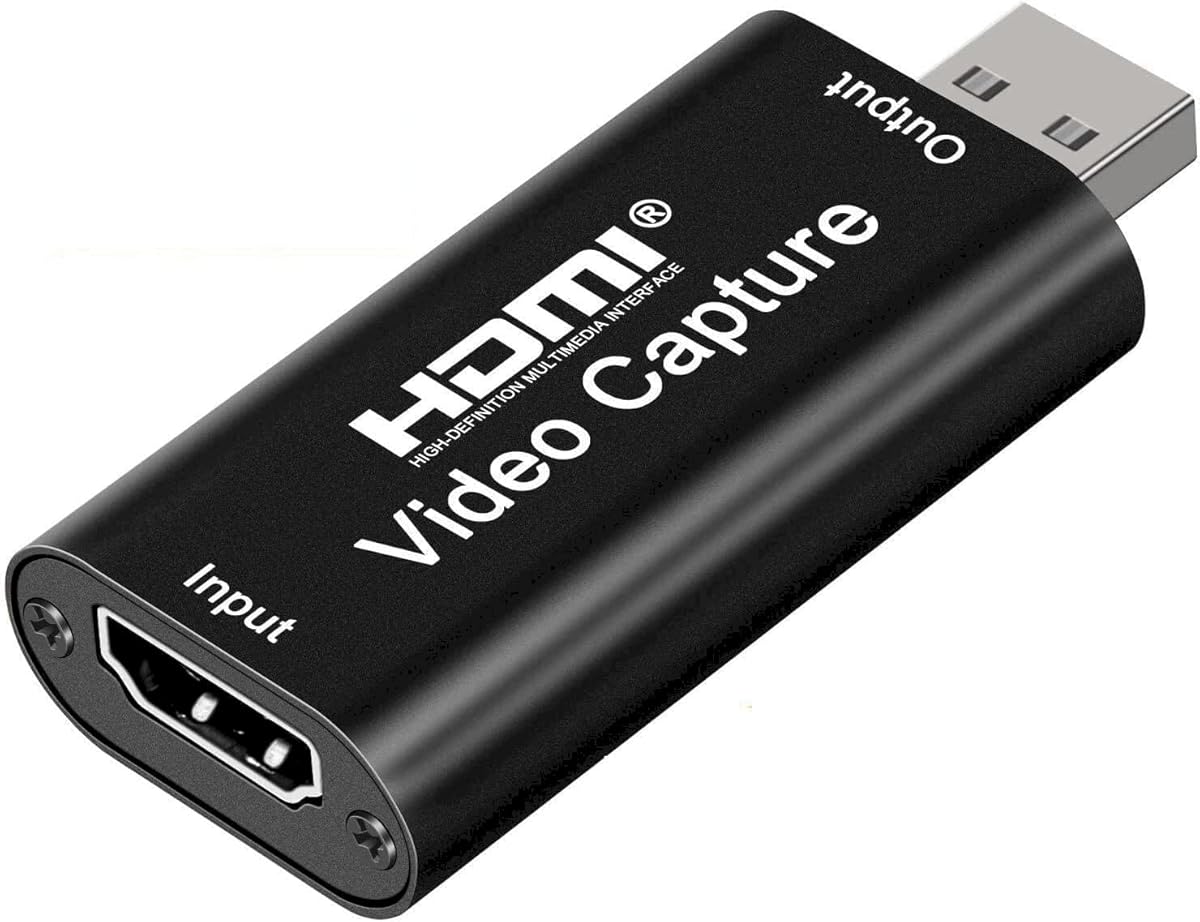
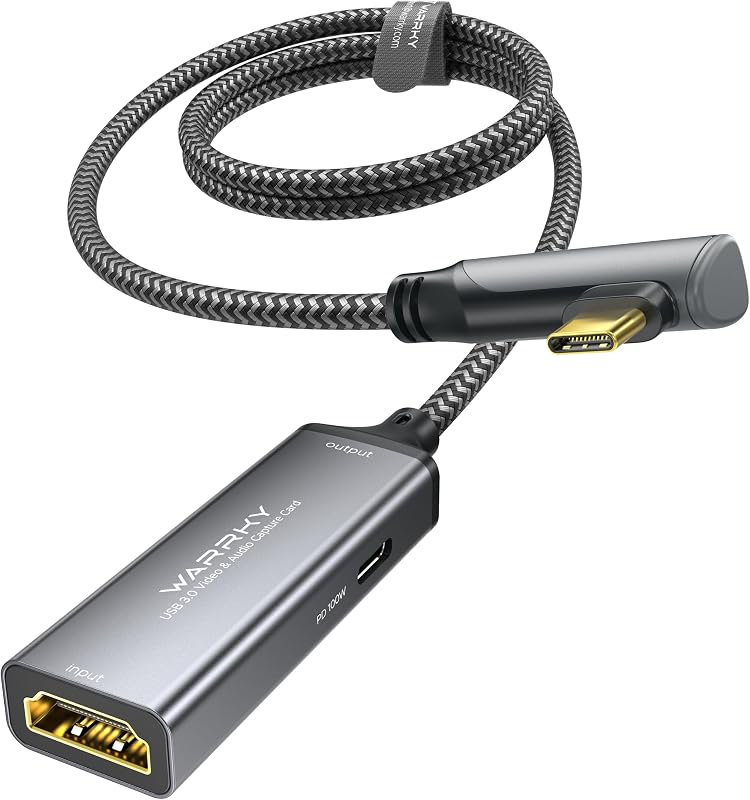
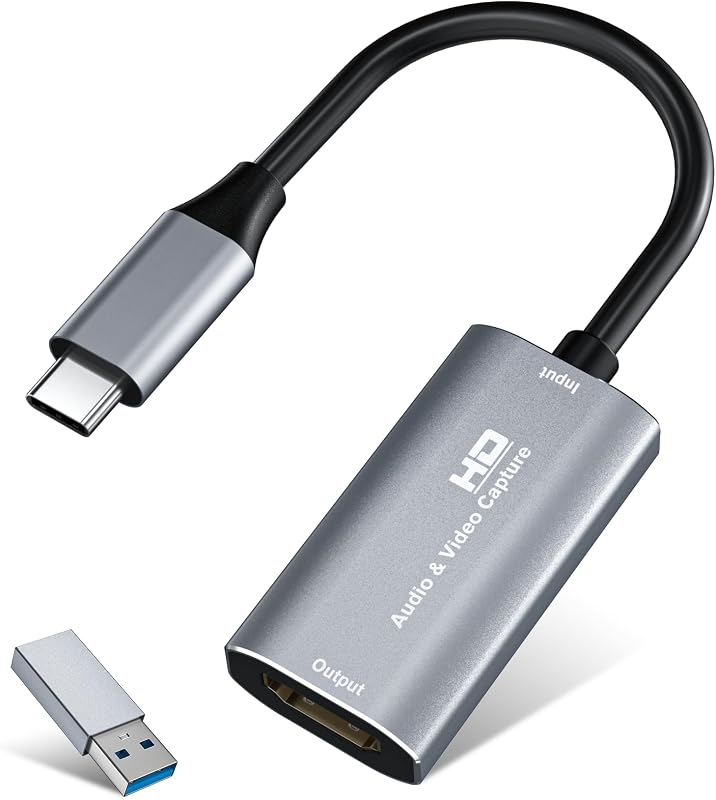
Product description Audio Express HDMI to USB Video Capture Card Unlock Unforgettable Moments - a great entry level device that helps out streamers on a low budget. Effortlessly capture and stream your cherished memories in stunning 4K quality using the HDMI to USB 2.0 Audio Video Capture Card! Great for elevating online gaming / streaming and live broadcasts with ease. Smooth Connection, Effortless Operation: 1. Set Up in Seconds: Install OBS (Open Broadcaster Software) or Potplayer on your computer and dive into streaming seamlessly. Download the software swiftly from your browser. 2. Seamlessly Connect HDMI Source: Link your UHD signal source, like a DSLR or camera, to the HDMI input (4K) on the capture card using an HDMI cable. 3. Instant USB Link: Effortlessly connect the video capture card to your computer's USB port using a simple USB cable. 4. Streamline with OBS: Optimize your streaming setup by selecting "Video Capture Device" as your source, customizing the image size, activating "Studio Mode" for a dual-window layout, and launching your streaming journey with a single click. Other Creative Applications: Autosound Head Units: Add HDMI input into Android Car Stereo Head Units using the "USB Camera Pro" app from the Google Play store. YouTube Start-Ups: Great low cost device for YouTube Gaming channels! Firestick Compatible: Attach the HDMI to USB Video Capture card to a Firestick and watch content on your computer. Great for traveling! Save Old VHS Memories: Use an RCA to HDMI adapter (not included) attach to the HDMI to USB Video Capture card and make digital copies of old VHS tapes! Enhanced Webcam: Attach a DSLR for an improved Microsoft Teams/Zoom and others webcam! ___________________________________ FAQ - IF YOU HAVE ANY QUESTIONS HELP CAN BE FOUND BELOW ___________________________________ WE UPDATE OUR FAQ REGULARLY! FEEL FREE TO REACH OUT TO US WITH ANY QUESTIONS. We understand that some help might be required whenever a new tech product is purchased. The Audio Express HDMI to USB Video Capture Card is no different. Should you experience any issues that you feel are unusual or simply have a question, we are here to help. General FAQ and Troubleshooting Help Frame Rate and Quality Settings: Ensure that you have optimized the frame rate and quality settings in your capture software. Adjusting these settings appropriately can significantly improve performance and video quality.USB Port Limitations: To prevent dropped frames or degraded performance, use a USB 2.0 port for your capture card. It's also recommended to avoid using hubs or shared ports, as they might impact the capture quality.Compatibility and Firmware: Check for the latest firmware updates for your capture card. Additionally, verify the compatibility of your gaming console, especially if you're using a Nintendo Switch model, to avoid any potential issues.Fast Motion and Frame Drops: During fast motion or scrolling in games, you might notice pixel misalignment. This can be related to frame drops. To mitigate this, try reducing the intensity of fast motion or scrolling in your gameplay, and ensure that your capture settings are optimized.Input Lag: Input lag can be influenced by various factors, including your computer's performance, HDMI cable quality, and capture software settings. Make sure your computer is capable of handling real-time video capture and consider using high-quality HDMI cables.Capture Software Settings: Adjust the settings within your capture software to match the requirements of your gameplay. Incorrect software settings can lead to synchronization issues, so take time to configure them properly.Other Factors: Keep in mind that specific games or consoles might have unique demands on your capture card. Test your device with a variety of games and devices to determine if the issues persist across different scenarios. VLC for WINDOWS USERS: If you're using VLC on Windows to stream, the card may not report the supported resolutions. If this happens you'll have to manually type them in on the Open Capture Device screen; here are the modes listed via ffmpeg: 640x480, 720x480, 720x576, 800x600, 1024x768, 1280x720, 1280x960, 1280x1024, 1360x768, 1600x1200, 1920x1080 The default output format 'mjpeg' supports 10-60 fps for all resolutions, and 'yuyv422' supports between 5-30 fps randomly per mode (1080 is 5fps) Note: the ffmpeg command to use is: ffmpeg.exe -f dshow -list_options true -i video="USB Video" STILL FRAMES ONLY: There may be an incompatibility or driver issue with your system. You can solve this problem by using an HDMI switching device such as the Gana 8k or 4k/HDMI Switch. STEREO ISSUES: If you are only seeing a single channel of audio on record or streaming you need to check HDMI Audio Settings: Make sure the source device you are connecting to the HDMI to USB Video Capture Card is set to output stereo audio. Many devices default to mono audio, and you might need to adjust the settings to ensure stereo ou
Agregás al carrito
Sumás este y otros productos que querés traer.
Cotizás el envío
Calculamos flete aéreo y aranceles a Argentina.
Confirmás y pagás
Un asesor te contacta con el link de pago.
Lo recibís en casa
Tracking en tiempo real. Aduana incluida.
Los mejor puntuados del mismo tipo de producto
Mismo tipo de producto y precio parecido









![VIXLW Tarjeta de captura de video HDMI 4K, tarjeta Cam Link, adaptador de audio para juegos HDMI a USB 2.0, dispositivo de captura de grabación para transmisión, enseñanza, juegos, transmisión en vivo, videoconferencia [Windows]](https://m.media-amazon.com/images/I/61MP0DG3NPL._AC_SL800_.jpg)