Cargando el producto…

Precio de origen
$ 291.232
$ 746.292
+ flete y aranceles — se calculan al cotizar
Compra protegida
Puerta a puerta
Aduana incluida
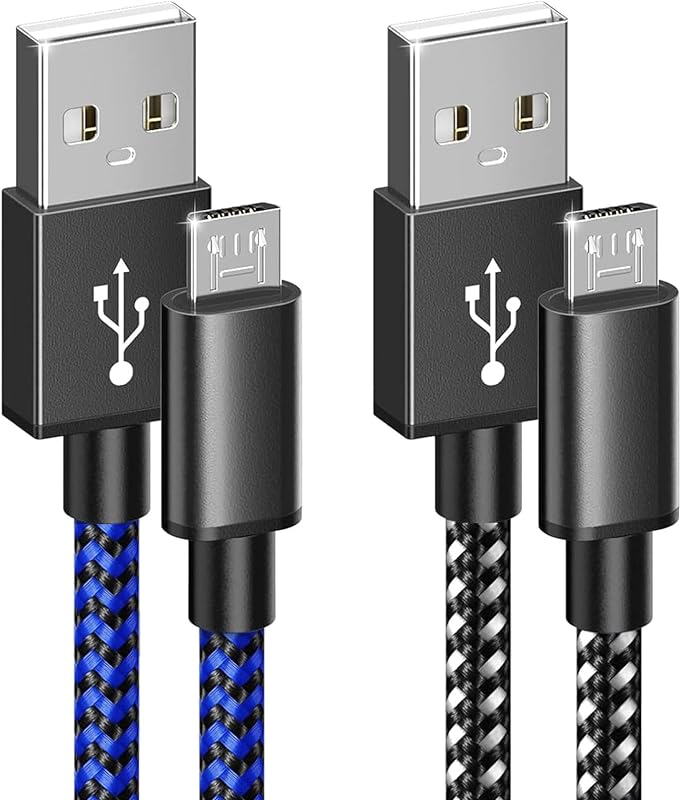
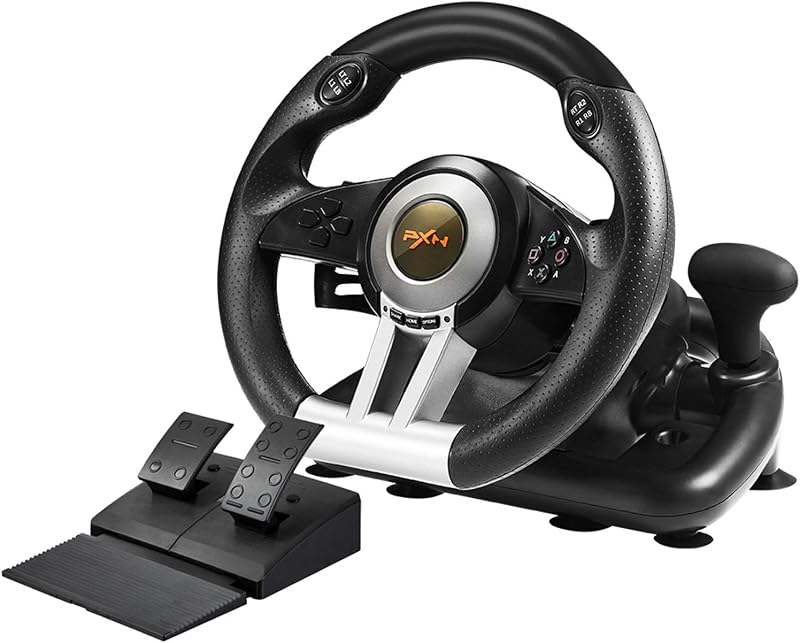
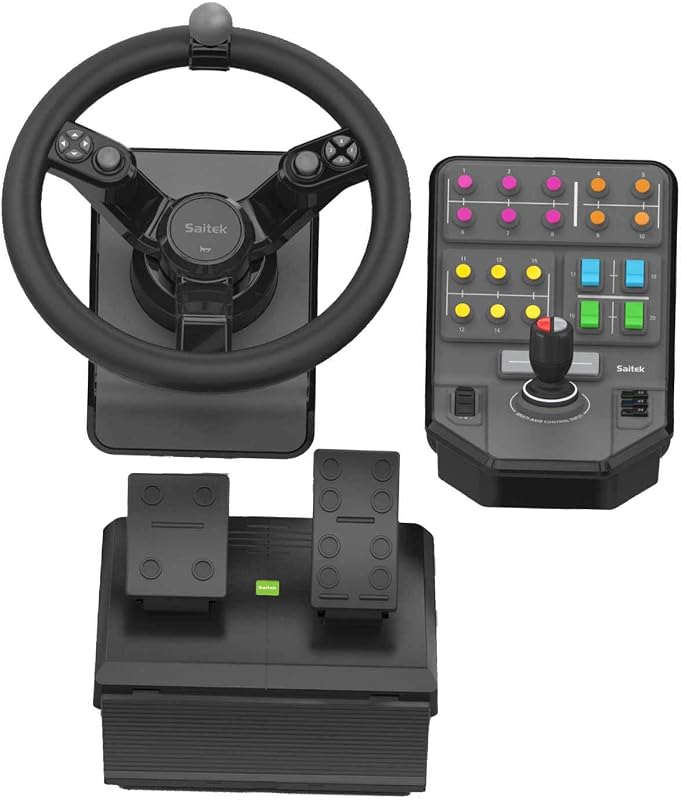
Product description NOTE:All customers pay attention to before use1. PXN-V9 racing wheel playing games on PC, if the clutch and shift lever do not work, it may be that the game mode is incorrect. Note: The steering wheel defaults to X-input mode on PC. When using the shift lever on PC, you need to press and hold the MODE key for 3 seconds to switch to "D-Input" mode, and then set the shift function in the game. )2. When playing games on PC, if the clutch and shift lever do not work, it may be that the game does not support the gear lever mode. The game uses an automatic transmission design and is controlled only by the throttle.3.PXN-V9 racing wheel button setting: You need to set the button inside the game, save, if you are set in the steering wheel, you can't save it.4. PXN-V9 racing wheel Connect PS3 / PS4 does not support hanging mode.5. For PS4, the voice interaction of the headset is inserted into 6. PXN-V9 racing wheel steering does not work, It may be a problem with the game steering setting, and the left joystick is not selected;7. D-input mode: Recommended games: "Euro Truck Simulator 2", "Assetto Corsa", "F1" series PS4/Xbox One, Xbox Series X/S Connection method1. you need to use PS4 Xbox One, Xbox Series X/S the original gamepad to guide,2. Before booting, make sure that the host and the original handle are off,3. Use the microusb cable with data transmission function to connect the steering wheel and the original handle,4. Connect the steering wheel to the host. After the original handle is connected to the steering wheel, turn on the host.5. After booting, press the HMOE button on the steering wheel. Can be manipulated to guide success.6.If it fails to control, please replace the data cable or restart7. NOTE: PXN-V9 does not support Apple Desktop/Laptop/PS5 first generation host) 270 Degree Steering Wheel Fit for competing racing games ( Not support the shifter )270 Degree suitable for racing game Like: Forza Horizon 4, DiRT Rally, Test Drive: unlimited, Need for Speed, etc.Q:How to adjust the steering degree of the steering wheel? 270°/900°?A:There is a setting button on the racing wheel, just adjust to the corresponding degree. If it can be set in the game, please set it to the same degree as the racing wheel.Q:Is it applicable to PS4? What should I pay attention to?A:Yes, but the official controller must be used to connect. If a third-party controller is used, steering wheel will not work.Q:Is it a force feedback wheel? Can I feel resistance?A:No, it is a vibration feedback wheel, without force feedback function, no resistance.Q:How to obtain the driver?A:You can scan the QR c0de in the user manual with your mobile phone. After downloading, turn on the Bluetooth and open the APP, it will automatically connect to the racing wheel and you can adjust it. Or download the corresponding driver from the website: .e-pxn.com/supportQ:Can I plug in headphones while in use?A:For PS4, headset and microphone functions can be implemented. Please note: When using with , if you use Shifter, the headset and microphone functions may be restricted. Connect with PCtep1. Please connect the pedals and shifter according to user needs before using.Step2. Plug the USB interface of the steering wheel into PC. Step3. Working mode is default to X-input, after successful connection, the red indicator will stay on. Step4. You can shift working mode by pressing the MODE button.ow to shift Working Mode?old MODE button for 3 seconds X- input←→D- input Press MODE button for 3 seconds on steering wheel until red indicator flashes. Then, you can shift working mode to D-input.X-input Mode Recommended game are Need for Speed 13, Dirty2/3, Ridge Racing etc. D-input Mode Recommended game are Need for Speed 1-12,Euro Truck Simulator 2 etc.Connect with PS3tep1 Please connect the pedals and shifter according to user needs before using.tep2 Plug the USB interface of the steering wheel into PS3, then power on PS3 console.tep3 The red indicator will remain on when connected successfully. Then power on console and launch game to play or conduct relevant function setting on PS3.Connect with N-SWITCHnter homepage of SWITCH, select Setting--Controllers and Sensors --select Pro Controller Wired Connection. Please make sure that the option state is ON. Connect with SWITCH consoletep1 Please connect the pedals and shifter according to user needs before using.Step2 Please plug the Type-C OTG into SWITCH console.tep3 Connect the steering wheel USB interface with Type-C adapter. Step4 The red indicator on the steering wheel will remain on when connected successfully. ( Note: The Type-C OTG is not included )Connect with SWITCH Docktep1 Please connect the pedals and shifter according to user needs before using. Step2 Place the SWITCH console into the dock to ensure successful connection.tep3 Plug the USB interface of steering wheel into SWITCH dock and power on SWITCH console. Step4 The red indicator on the steering wheel will remain on when conn
Agregás al carrito
Sumás este y otros productos que querés traer.
Cotizás el envío
Calculamos flete aéreo y aranceles a Argentina.
Confirmás y pagás
Un asesor te contacta con el link de pago.
Lo recibís en casa
Tracking en tiempo real. Aduana incluida.
Lo que suele llevarse para tu consola · un solo envío para todo
De la misma marca, empezando por lo más reseñado
Los mejor puntuados del mismo tipo de producto
Mismo tipo de producto y precio parecido