Cargando el producto…

Precio desde
$ 18.185
+ flete y aranceles — se calculan al cotizar
Color
Compra protegida
Puerta a puerta
Aduana incluida
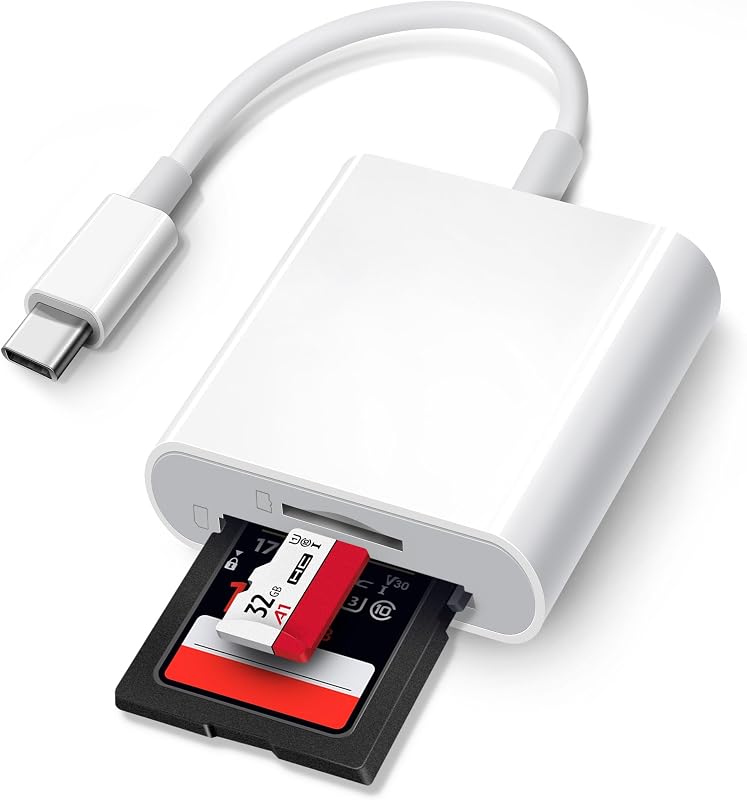
Product description Download photos and videos from camera to your iPhone anytime Read files from digital camera, Dash Cam or Trail Camera Having fun with your friends or family in the field and needs to share photos or videos quickly and easily Using this card reader, you can read SD card or Micro SD card taken by digital camera, Dash Cam or Trail Camera and read the photos or videos soon. You can share download it and share it with your friends or family. USB Adapter connets your iPhone with USB flash drive, keyboard, camera cable, etc Connect your iPhone with lots of the products with the help of this adapter How to connect your iPhone with your keyboard, USB flash drive, another iPhone/ iPad, digital camera? USB flash drive With this adapter, you can read the USB flash drive directly with your iPhone and don't have to read it through a computer. Open "Files" app and you can read and manage the files in your USB flash drive. Keyboard or mouse You can also connect your keyboard or mouse with this adapter and type easily with your keyboard. Connect with another iPhone/iPad Besides, if you want to share the photos with another iPhone or iPad, you can use this adapter and connect it with another iPhone/iPad through a iPhone cable. Digital Camera You can also connect it with your digital camera through a cable go with the camera and read the photos in your camera directly. Wide Compatiblity For iPhone(Light-ning): iPhone 5 to 14 series For iPad(Light-ning): iPad 5/6/7/8/9th Generation,iPad Mini 1st/2nd/3th/4th, iPad Air 1st/2nd, iPad Pro 12.9"/9.7"/10.5" For iPhone(USB-C):iPhone 15, iPhone 15 Plus, iPhone 15 Pro, iPhone 15 Pro Max, iPhone 16, iPhone 16 Plus, iPhone 16 Pro, iPhone 16 Pro Max,iPhone 17,iPhone 17 Pro,iPhone 17 Pro Max,iPhone 17 Air,iPhone 17e For iPad(USB-C):iPad 10.9-inch 10th Gen/iPad Pro 12.9"(3rd-6th) / iPad Pro 11"(M4,M5)/iPad Air(M2,M3,M4) For Mac:Mac Pro (2019-2026)/Mac Mini (2018-2025)/Mac Studio (2022-2025)/iMac/iMac (2017- 2024)/MacBook/MacBook Air (2018-2026)/MacBook Pro (2016-2026)/Macbook Neo For Android Phone( USB-C):Samsung Galaxy Series,Google pixel Series and another Android Phone withe USB-C Port(Please enabled your USB-C Android devices surport OTG function ) Download photos from Memory Card to iPhone/iPad for User's iOS between 9.2 to 12.5.7 One-way transfer for iOS user with iOS9.2 to iOS12.5.7 Photos App ( from iOS 9.2 to iOS12.5.7) Photos app only manage photos and videos, no other data. And it is a one-way transfer which only allows photos from card to your iPhone. 1. Insert a memory card that contains photos or videos into the card reader. Turn on iPhone & iPad and attach the reader to the Lightning port. 2. On iPhone & iPad, select the photos and videos that you want to import. View the photos from Album and share it with your friends or family. 3. “Photo” APP can only can read photos or videos taken by digital camera. It will show nothing if photos or videos were not taken by digital camera. If you want to read other files, or photos and videos were not taken by digital camera, please upgrade your iOS to 13 or later and follow the instruction of next page. Download photos from Memory Card to iPhone/ iPad for User with iOS 13 or later Two-way transfer for iOS user with iOS 13.0 or later Files App ( iOS 13 or later) Files app is an important app which can transfer files between your memory card to your iPhone & iPad. Data from your iPhone is “on my iPhone” and data of memory card is on “Untiled” (or "NONAME", which is the name of your memory card) You can view data and transfer the data between memory card and iPhone. Files app not only manager can videos and photos, but also manage music, PDF, word, or Excel, etc. 1. Insert a memory card into the reader. Turn on iPhone & iPad and attach the reader to the Lightning port. 2. On iPhone & iPad, open “Files” app. You can view the files in your memory card. You can view most files like jpg, MP3, word, excel, ppt and so on. If you can view the files but can’t open it, you may need to download a third-party app to read this file. 3. You can delete files or copy and paste files from memory card to your iPhone or iPad. Or coy files from iPhone or iPad to memory card. 4. If you can see the data, but not able to open it, you need to download a third-party App to open it. What can I do if I see nothing on my iPhone? 1. If you don’t see anything, don’t worry. App won’t pop up automatically, please access “Files” App. Then you will see “On My iPhone” which is the data on your iPhone. If you connect a USB flash drives, or a SD card or a TF card to your iPhone through this adapter, “Untitled” or “NONAME” will be shown below “On My iPhone”. “Untitled” or “NONAME” are the default name of most memory card. If your memory card were named “ABC”, you will see “ABC” there. Just tap “ABC” you will see what’s inside your memory card. 2. When you get inside “ABC” folder, you have three choices at the bottom of the screen. “Recents”, “Shared” and
Agregás al carrito
Sumás este y otros productos que querés traer.
Cotizás el envío
Calculamos flete aéreo y aranceles a Argentina.
Confirmás y pagás
Un asesor te contacta con el link de pago.
Lo recibís en casa
Tracking en tiempo real. Aduana incluida.
Los mejor puntuados del mismo tipo de producto
Mismo tipo de producto y precio parecido