Cargando el producto…

Precio de origen
$ 39.161
$ 48.980
+ flete e impuestos
Compra protegida
Puerta a puerta
Gestión aduanera
Tu compra, acompañada de principio a fin
Todo esto está en los Términos y Condiciones. Leerlos
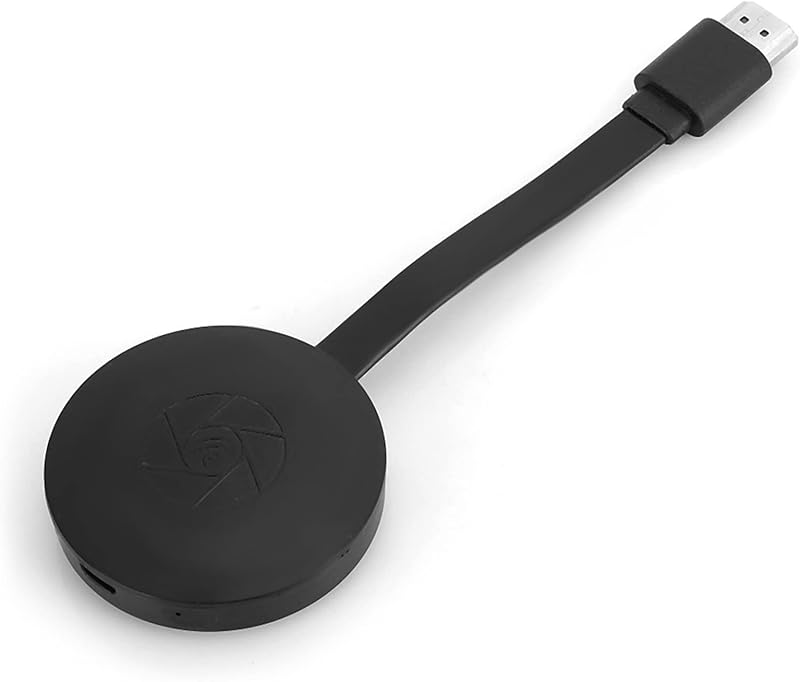
Product description Anycast M2 1080P Wireless HD Display Receiver Turn your HDTV into a smart TV with SmartSee Wireless display adapter. Anycast dongle - Mirror a small screen to a large screen wirelessly. What is an HD Wireless Display Adapter? An 1080P HD Wireless Display Adapter is to mirror what you see on your mobile device(smartphone/tablet) to another large screen(TV/monitor/projector). Please Note: A small screen must be Airplay supported, or Miracast supported. Such as iOS and Mac OS devices are Airplay supported devices. Most Android devices and Windows devices are Miracast supported devices. A large screen must be HD equipped, such as TV, projector, monitor etc. An Anycast dongle can cast the screen of iOS, Mac OS, most Android devices and most Windows devices onto a HD TV, projector, monitor wirelessly. (Note for Android and Windows users: Devices that do not support Miracast will not work with the Anycast dongle. Please refer to the Compatibility Table image or ask "ChatGPT" to check if your device is supported.) Do I need this item? Yes, everywhere. At home: you can mirror your phone/tablet to your TV, no need to stare at the phone alone, watch TV together and free your hands. At hotel: Setting the TV or TV box is a little troublesome? Just mirror your mobile device to TV or projector by using this item. In a meeting room: No need other cables, just connect this item to mirror your tablet pc on your projector wirelessly. In a classroom: Share your content of courses on big screen wirelessly. Installation of Anycast Dongle on an HD display(TV/Projector/Monitor,etc): Plug Ancyast dongle into your hd display Plug AnyCast dongle into an HD port on TV and switch the TV to the selected input source. Plug USB cable for power supply Connect WiFi cable (micro USB head) to AnyCast dongle; plug USB cable into an external USB power adapter(power adapter is not inculded). Anycast connected successfully Please note to switch the TV to the selected channel, and AnyCast page will show up on your TV now. Connection Anycast Dongle with iOS Devices Setup on your for iPhone/iPad/Mac Step 1: Connect the AnyCast SSID in your WiFi Setting on your for iPhone/ iPad/ Mac Step 2: Go to Safari browser and input 192.168.203.1 at the top searching bar to come to the Anycast Setting Menu and connect the dongle to your WiFi router Note: In Setting Menu, you can connect the Anycast dongle to your WiFi router here by clicking "Internet" and choose your WiFi router to connect. Once connected, no need to reconnect again. Also, language , Anycast password, and Resolution can be changed by yourself in Setting Menu. Step 3: Go to the Control Center on your phone and choose the Airplay Mirroring to select AnyCast dongle to start to mirror. Please note: 1. Once the Anycast dongle connects to your WiFi network successfully, your WiFi name shows up on the right top of your TV; the IP address 192.168.203.1 goes invalid, this generates a new IP address on your TV to access the Anycast setup page if needed. 2. Once the Anycast dongle and your phone are connected to the same WiFi network, do Screen Mirroring directly for next use, no need to other connection. MOST IMPORTANT: If you dont have WiFi network, Please skip the Step 2, only do the Step 1 and Step 3 above. Since there is no WiFi network available, users will need to rely on mobile data if internet access is required. Connection Anycast Dongle with Android Devices Setup on your Android devices Step 1: Press the button on the dongle to switch to Android mode Step 2: Access Miracast(wireless display/smartview/play to etc) on your Android device, and pair with Anycast adapter to start mirror. Please note for Android Users: 1. Miracast shows in different names on different Android devices, please find your Miracast correctly. 2. Not all Android devices support Miracast, please check whether your phone supports Miracast or not. Setup on your Windows devices Step 1: Press the button on the dongle to switch to Android mode Step 2: On your Windows PC, press the short key Windows + K, and choose AnyCast from the list to mirror your screen. Then your windows screen will be mirrored on the TV. Connect the Anycast dongle properly in correct mode, share screens easily and wirelessly. Screen Mirroring Wirelessly for Business Education Home Entertainment Notes: 1. Not compatible with the encrypted apps, such as Netflix/ Amazon Video/ HBO go/ Hulu Plus sky go/DIRECTV etc 2. As of partial Android devices not support MiraCast, no Miracast no working, please do check whether your Android device supports Miracast or not. Troubleshooting Notes: Wroking Mode: Designs 2 modes in the mirroring dongle: Airplay Mode and Miracast Mode. It comes in Airplay Mode by default. If you use an Android device or a Windows device, switch to Miracast Mode by pressing the button on the dongle. Power Supply: Plug the USB charging cable into an external power adapter(no included) which offers 5V/1A power at least for stab
Agregás al carrito
Sumás este y otros productos que querés traer.
Cotizás el envío
Calculamos flete aéreo y aranceles a Argentina.
Confirmás y pagás
Online con tarjeta, o por transferencia, con el total final a la vista.
Lo recibís en casa
Seguimiento en tiempo real. El despacho lo hacemos nosotros.
Lo que suele llevarse para tu celular · un solo envío para todo
Los mejor puntuados del mismo tipo de producto
Mismo tipo de producto y precio parecido
![Mkeke para iPhone 16 Pro Max Funda transparente [no amarillenta] [Protección contra caídas de grado militar] Funda protectora transparente a prueba de golpes para iPhone 16 Pro Max Funda de parachoques para Apple 6.9 pulgadas 2024](https://m.media-amazon.com/images/I/7154009guGL._AC_SL800_.jpg)

![[Paquete de 2 certificados por Apple] Cargador de iPhone de 6 pies, cable Lightning largo de 6 pies, cables de carga rápida para Apple iPhone 12/11/11Pro/11Max/ X/XS/XR/XS Max/8/7/6/5S/SE/iPad Mini Air (azul)](https://m.media-amazon.com/images/I/61vthFWyMuL._AC_SL800_.jpg)
![Soporte universal para ventilación de aire para automóvil, [teléfonos grandes y estuches gruesos] Soporte para teléfono celular para automóvil Soporte con abrazadera manos libres Vehículo apto para todos los teléfonos inteligentes Apple](https://m.media-amazon.com/images/I/714+VNh+unS._AC_SL800_.jpg)