Cargando el producto…

Precio de origen
$ 78.380
+ flete e impuestos
Compra protegida
Puerta a puerta
Gestión aduanera
Tu compra, acompañada de principio a fin
Todo esto está en los Términos y Condiciones. Leerlos
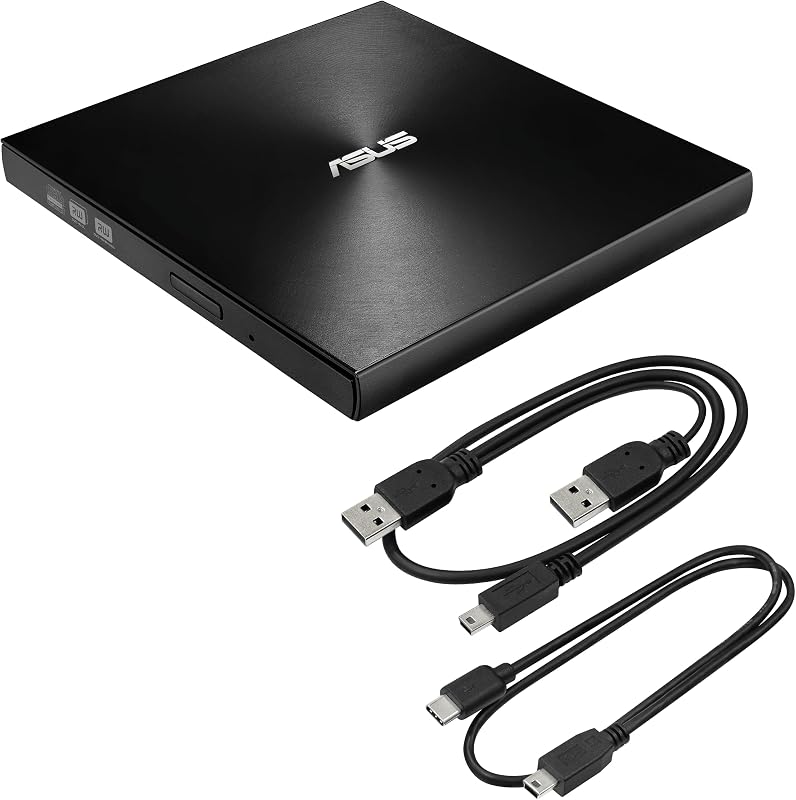
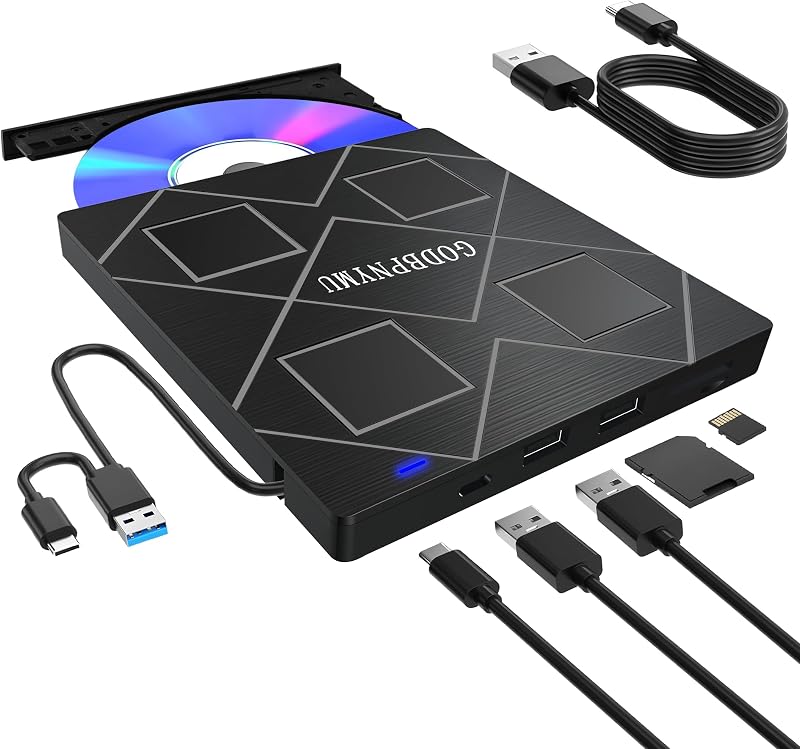
Descripción del producto Unidad externa de CD/DVD Guamar para computadora portátil Apple MacBook Air/Pro iMac Página anterior No se necesita controlador Plug and Play No se necesita alimentación externa Fácil de usar Compatibilidad perfecta Compatibilidad universal para su vida digital. Página siguiente 1 Puerto USB A+USB-C 2 Unidad de CD multifunción 3 Amplia compatibilidad Página anterior Carcasa de aluminio Estuche protector INCLUIDO Estuche protector para máxima portabilidad. Unidad de CD ultradelgada Página siguiente 1 Materiales de primera calidad 2 Protección de primera calidad 3 Compacta y portátil Página anterior Página siguiente 1 Extraiga CD y DVD 2 Reproduzca DVD y CD Regalo perfecto para amigos y familiares. La unidad externa Guamar CD ROM para computadora portátil puede leer y escribir películas DVD, grabar archivos, videos, fotos, copiar CD de música, instalar software/juegos y crear copias de seguridad de datos. También es una buena idea regalarlo a los aficionados que coleccionan CD y DVD. ¿Es compatible con computadoras Mac? Sí, la unidad de CD externa Guamar es compatible con Mac. Funciona con todas las versiones de macOS y está diseñado específicamente para MacBook Air, MacBook Pro, MacBook Neo, iMac, Mac mini y Mac Studio, incluidos los modelos M1/M2/M3/M4. ¿Funciona con Windows 10? Sí, la unidad de CD externa Guamar para computadora portátil es compatible con computadoras Windows y Mac. Es un dispositivo plug and play en varios sistemas operativos, incluidos Windows 11, Windows 10, Windows 8, Windows 7, Windows Vista, Windows XP, Linux y Mac OS. ¿Viene con un estuche de transporte? Sí, la unidad de DVD USB externa Guamar viene con un estuche protector para viajar. ¿Cómo reproducir DVD en Mac usando Guamar USB 3.0 Superdrive? 1. Haga clic en "Finder" → "Preferencias" → asegúrese de que "CD, DVD e iPod" esté marcado. 2. Conecte la unidad directamente al puerto USB de su Mac (nunca a través de un concentrador). 3. Inserte su DVD. 4. El icono del DVD aparecerá en el escritorio. 5.Utilice reproductores multimedia (reproductor de DVD) para reproducir. ¿Cómo expulsar un disco en Mac? Puede intentar estos pasos: 1. Haga clic con el botón derecho en el icono del disco en su escritorio y seleccione Expulsar, o elija Archivo > Expulsar en el menú. 2. Método abreviado de teclado: presione Comando + E al mismo tiempo para expulsar el disco (funciona cuando el disco está seleccionado en Finder).
Agregás al carrito
Sumás este y otros productos que querés traer.
Cotizás el envío
Calculamos flete aéreo y aranceles a Argentina.
Confirmás y pagás
Online con tarjeta, o por transferencia, con el total final a la vista.
Lo recibís en casa
Seguimiento en tiempo real. El despacho lo hacemos nosotros.
Lo que suele llevarse para tu notebook · un solo envío para todo
Los mejor puntuados del mismo tipo de producto