Cargando el producto…

Precio desde
$ 220.656
+ flete e impuestos
Color
Tamaño
Compra protegida
Puerta a puerta
Gestión aduanera
Tu compra, acompañada de principio a fin
Todo esto está en los Términos y Condiciones. Leerlos
¿Es una compra grande? Repasala con una persona.
Te contamos cómo queda el costo total —flete, impuestos y aranceles— y cuánto tarda, antes de que pongas la tarjeta.
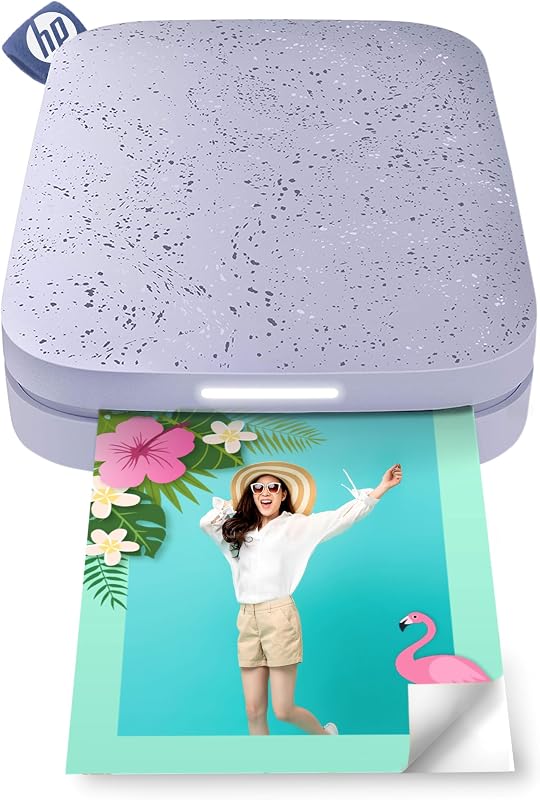
Escribinos por WhatsAppDescripción del producto Diversión fotográfica instantánea a tu manera Experimenta la diversión panorámica El video muestra el producto en uso. El video lo guía a través de la configuración del producto. El video compara varios productos. El video muestra el producto desempaquetado. Impresora fotográfica instantánea en color HP Sprocket Panorama Cree tiras, etiquetas y diseños de fotomatón personalizados Página anterior Posicione, fotografíe e imprima Cree instantáneamente tiras de fotomatón de 2x9" en la aplicación y personalícelas con calcomanías, marcos y más. Imprima a su manera Imprima creaciones personalizadas en cualquier lugar de 0,5" a 9" de largo en papel fotográfico Zink con reverso adhesivo de 2" de ancho. Impresión inalámbrica al alcance de su mano Conéctese a cualquier teléfono inteligente iOS o Android a través de Bluetooth e imprima instantáneamente desde la aplicación Panorama Label Making Magic Manténgase organizado con impresiones adhesivas. Agregue textos y córtelos a la longitud personalizada para obtener etiquetas instantáneas. Página siguiente 1 Tiras de fotomatón 2 Elija su tamaño 3 Conectividad Bluetooth 4 Etiquetas Tecnología ZINK Sin tinta, sin límites Página anterior Toda la diversión, nada de tinta La tecnología Zink funciona como magia sin necesidad de tinta. Cada hoja está incrustada con cristales de color activados por calor que dan vida a fotografías brillantes y vibrantes. Impresiones duraderas para una diversión duradera. Capture cada momento en papel duradero ZINK Zero Ink: a prueba de manchas, resistente al agua, resistente a desgarros y diseñado para durar. Cíñete a lo que amas Despega el adhesivo y pega tus tiras de fotos favoritas en tu álbum de recortes, diario, computadora portátil y más. Instantáneas de álbumes de recortes Lleve la impresora portátil a donde lo lleve la aventura y cree tiras fotográficas, etiquetas y diseños personalizados para mejorar instantáneamente sus entradas. Página siguiente Comience en un instante Página anterior Paso uno Descargue la aplicación HP Sprocket Panorama y conecte la impresora a su teléfono mediante Bluetooth. Paso dos Inserte la hoja de limpieza y coloque la cubierta en la impresora para que la hoja se alimente automáticamente. Paso tres Coloque el rollo en el soporte, introduzca el papel en la ranura y fije el soporte a la impresora. Paso cuatro Una vez escaneado el código de barras, presione el botón de corte para cortar uniformemente la etiqueta del código de barras. Paso cinco Utilice la aplicación para personalizar sus fotos con pegatinas, filtros, marcos y texto antes de imprimirlas. Página siguiente 1 Descargar la aplicación 2 Limpiar la impresora 3 Cargar papel 4 Cortar el código de barras 5 Imprimir creaciones ¿Qué haces si aparecen rayas en tus fotografías? Si aparecen rayas en las fotografías, puede utilizar la hoja de limpieza para limpiar los rodillos de la ruta del papel y mejorar la calidad de impresión. Asegúrese de conservar la hoja de limpieza para mantenimiento futuro. ¿Cómo se carga papel en HP Sprocket Panorama? Primero, retira la tapa y coloca el rollo de papel en el soporte. Luego, retire la pegatina roja del rollo e introduzca el extremo del papel en la ranura. Finalmente, inserta el soporte y coloca nuevamente la tapa en la impresora. ¿Qué papel puedes usar con la HP Sprocket Panorama? El HP Sprocket Panorama está especialmente diseñado para usarse con el rollo de papel HP Sprocket Panorama ZINK. Para evitar atascos de papel y mal funcionamiento, no utilice ningún otro papel fotográfico. ¿Cómo se corta correctamente el papel una vez impresa la fotografía? Cuando la impresora le notifique que la impresión se ha completado, presione firmemente el centro del botón del cortador para garantizar cortes limpios y uniformes. ¿Qué se hace para solucionar un atasco de papel? Si la impresora se sobrecalienta, se queda sin papel o tiene un atasco de papel, el indicador LED parpadeará en rojo. La impresora debería eliminar automáticamente los atascos de papel, pero para solucionarlos manualmente, simplemente saque el rollo de papel de la impresora y reinícielo.
Agregás al carrito
Sumás este y otros productos que querés traer.
Cotizás el envío
Calculamos flete aéreo y aranceles a Argentina.
Confirmás y pagás
Online con tarjeta, o por transferencia, con el total final a la vista.
Lo recibís en casa
Seguimiento en tiempo real. El despacho lo hacemos nosotros.
Lo que suele llevarse para tus zapatillas · un solo envío para todo
De la misma marca, empezando por lo más reseñado
Los mejor puntuados del mismo tipo de producto