Cargando el producto…

Precio de origen
$ 50.940
$ 62.700
+ flete e impuestos
Compra protegida
Puerta a puerta
Gestión aduanera
Tu compra, acompañada de principio a fin
Todo esto está en los Términos y Condiciones. Leerlos
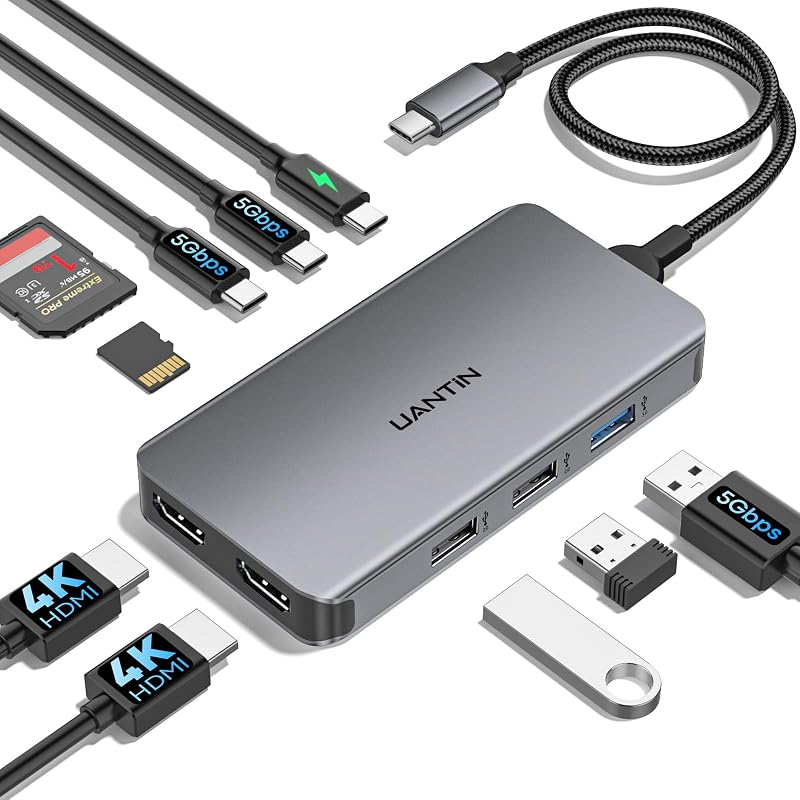
Product description Previous page Next page 1 Premium Finish 2 Flexible Cable Previous page Next page 1 Ultra-Clear Dual Displays 2 Resolution Compatibility Anker USB-C Hub (7-in-1, Dual Display) Model Number: A8374 Seamless Dual Monitors and Multiple Connections Dual Screens&Multiple Ports : Take control of your desk with dual monitor support and seven connectivity ports, all from one compact device. Mirror or Extend Your Screens: Choose between mirror and extended display modes to optimize your viewing area and improve productivity. (Note: macOS supports only mirror mode.) Durable, Metallic-Like Finish: Experience a touch of elegance and refined craftsmanship thanks to the metallic-like finish, meticulously crafted from high-quality aluminum. Safe and Compatible: Equipped with safety features such as short circuit and overvoltage protection, the hub also ensures compatibility with major operating systems and devices. Notes 1: The USB-C and USB-A ports do not support charging peripheral devices. Notes 2: This hub is not compatible with Switch or SuperDrive. Notes 3: The maximum resolution for extended displays on Windows laptops is determined by the capabilities of their graphics card. Notes 4: Multi-Stream Transport (MST) is not supported on Mac laptops. Monitors connected via HDMI will mirror displays, showing the same image. Notes 5: To fully utilize the display capabilities of the iPad Pro (M1), please connect a USB 3.0 drive to the 10Gbps USB-A port. Q: Why is there a big difference in resolution between two monitors when Windows is dual-projected? A: The discrepancy in resolution can occur if one monitor uses too much bandwidth, leaving insufficient bandwidth for the other. To balance the resolutions, you can adjust settings for each monitor: Step 1: Reduce High-Resolution Displays 1. Go to System Settings > Display > Advanced Display. 2. Under "Select a display to view or change its settings," choose the high-resolution display (e.g., Display 2). 3. Click "Display adapter properties for [display]." 4. Select "List All Modes," choose a lower resolution like 1920x1080 at 60Hz, and apply the changes. Step 2: Improve Low-Resolution Displays 5. Repeat the steps for the low-resolution display. 6. Under "Select a display," choose the display with lower resolution. 7. Follow the same adjustment process to increase the resolution to your desired level.
Agregás al carrito
Sumás este y otros productos que querés traer.
Cotizás el envío
Calculamos flete aéreo y aranceles a Argentina.
Confirmás y pagás
Online con tarjeta, o por transferencia, con el total final a la vista.
Lo recibís en casa
Seguimiento en tiempo real. El despacho lo hacemos nosotros.
Lo que suele llevarse para tu pantalla · un solo envío para todo
De la misma marca, empezando por lo más reseñado
Los mejor puntuados del mismo tipo de producto
Mismo tipo de producto y precio parecido


![Anker Hub USB de 4 puertos con transferencia de datos de 5 Gbps, concentrador USB 3.0 múltiple, divisor USB para computadora portátil, extensor para un puerto portátil, PC, computadora de escritorio y más [carga no compatible] (USB-A de 0,7 pies) (paquete de 2)](https://m.media-amazon.com/images/I/51gQWHVLMGL._AC_SL800_.jpg)




![Cable USB C Anker [paquete de 2, 6 pies], cable de carga rápida tipo C biotrenzado de 240 W para iPhone 17 Series, MacBook Pro 2020, iPad Pro y más (USB 2.0, negro)](https://m.media-amazon.com/images/I/81B9265yaXL._AC_SL800_.jpg)









![WAVLINK Estación de acoplamiento para disco duro externo USB 3.0 y USB C a SATA de doble bahía para HDD/SSD de 2,5/3,5 pulgadas con UASP (6 Gbps), compatible con función de clonación/duplicación sin conexión [16 TB X2]-Negro](https://m.media-amazon.com/images/I/51jp4vxjVJL._AC_SL800_.jpg)