Cargando el producto…

Precio de origen
$ 33.840
+ flete y aranceles — se calculan al cotizar
Compra protegida
Puerta a puerta
Aduana incluida
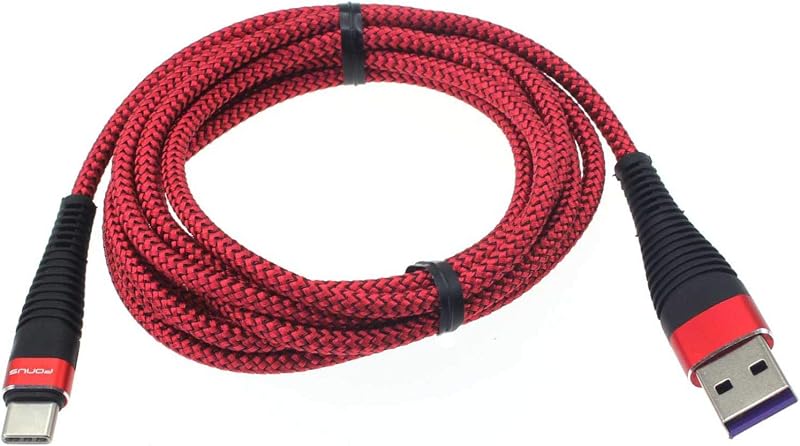
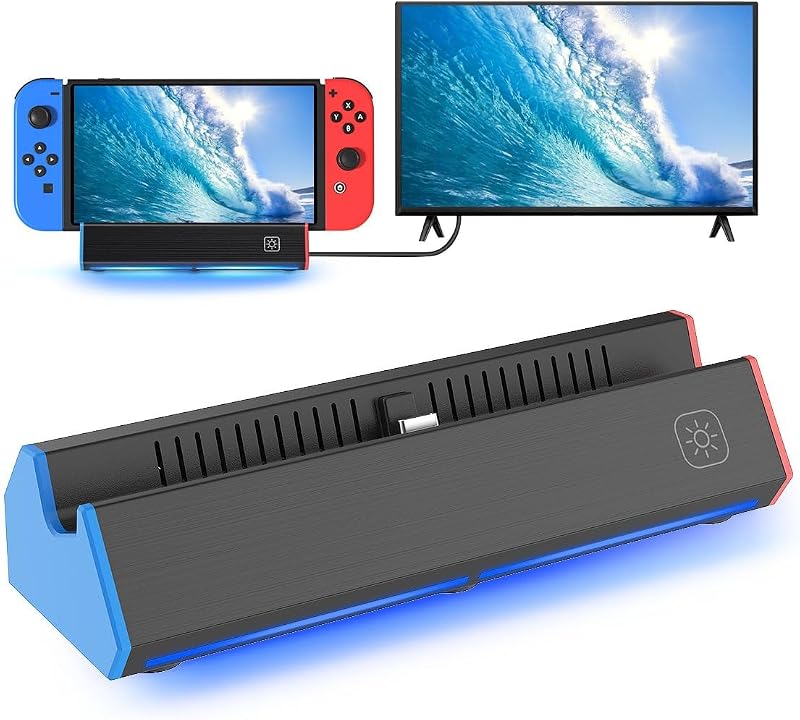
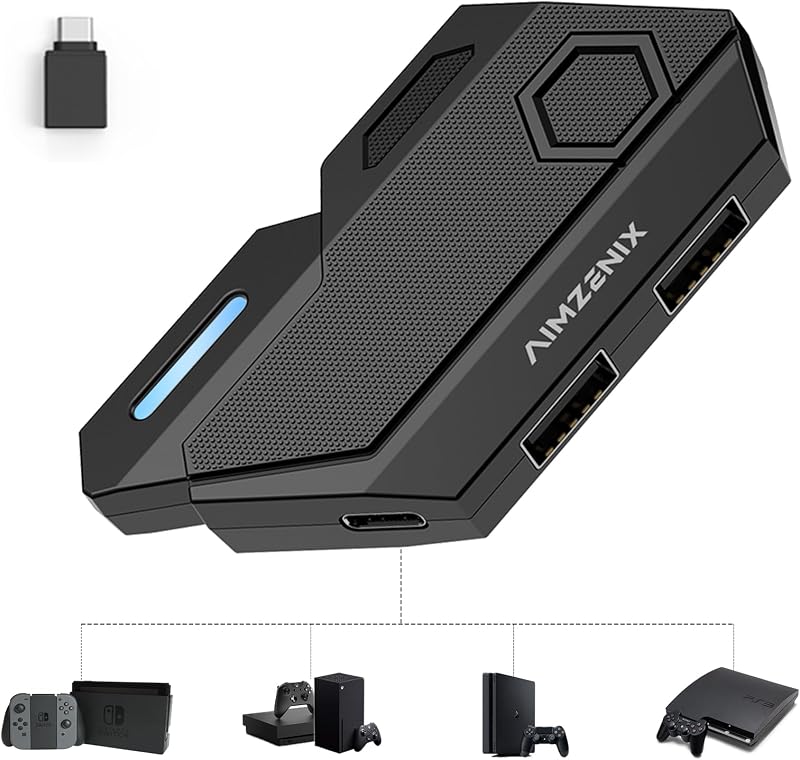
Product description Koiiko Keyboard and Mouse Converter for Nintendo Switch, Xbox Series/One,PS4/PS3 Previous page Best Gaming Accessories Allowingyou to quickly defeat opponents in PUBG, Fortnte &Call of Duty games and easily win the game Mouse & Keyboard Converter Interface Introduction Console/keyboard/mouse not included Next page 1 Plug and Play 2 Perfect for FPS, TPS, RPG 3 Interface Introduction 4 Packing List Previous page Next page 1 Switch Connection 2 Switch Default Key Previous page Next page 1 Xbox Connection 2 X-Series Default Key 3 X-One Default Key Previous page Next page 1 PS Connection 2 PS4 Default Key 3 PS3 Default Key Product Parameters/Compatible Devices/Functions Name Mouse and Keyboard Converter for Switch/PS4/PS3/Xbox Series/ONE Sizes 6.3*2.76*1.02inch Weights 0.11pounds Voltage DC5V/15V Current 2.6A Material ABS Interface USB Port x4 ; Type C Port x1 For Nintendo Switch Keyboard and mouse converter for Nintendo Switch, Switch Oled [Not fo Switch Lite,Switch 2] For PlayStation Keyboard and mouse adapter for PS4/PS4 Slim/PS4 Pro/PS3 [NOT for PS5] For Xbox Keyboard mouse adapter for Xbox One, Xbox One S, Xbox One X, Xbox Series S/Xbox Series X [Not for Xbox 360] Support Keyboard & Mouse Types Support wired keyboard and mouse; Support 2.4G Wireless keyboard and mouse [Not support Bluetooth Wireless keyboard and mouse] Mouse Sensitivity Adjustment (1)Increase View Sensitivity: Press Ctrl + Alt + X to increase sensitivity. (2)Decrease View Sensitivity: Press Ctrl + Alt + Z to decrease sensitivity. *When setting, the LED will blink once for each adjustment pressed, and the LED will not blink again when set to the maximum or minimum. Aiming Speed Adjustment (1) Increase Aim Sensitivity: Hold the Mouse Left Button, then press Ctrl + Alt + X to increase aim sensitivity. (2)Decrease Aim Sensitivity: Hold the Mouse Left Button, then press Ctrl + Alt + Z to decrease aim sensitivity. *When setting, the LED will blink once for each adjustment pressed, and the LED will not blink again when set to the maximum or minimum. Dead Zone Adjustment (1) Increase Dead Zone: Press Ctrl + Alt + F4 to increase the dead zone. (2) Decrease Dead Zone: Press Ctrl + Alt + F3 to decrease the dead zone. *When setting, the LED will blink once for each adjustment pressed, and the LED will not blink again when set to the maximum or minimum. Can I connect using an unofficial controller? For Xbox and PS players, you must use an official controller connection; third-party controllers are not supported. For Switch players, no controller is required for connection. Why doesn't it work after connecting? Please remove all devices from the converter and reconnect. Why does the converter indicator keep flashing or not light up? 1. The power supply may be unstable. Please use a Type-C cable (not included) to power the adapter. 2. Please remove all devices from the converter and reconnect. Can I customize the key settings? Customized keys are not supported Can I connect wired headset to the converter? No, it is not supported to directly connect headset to the converter. You can connect headset to the games console.
Agregás al carrito
Sumás este y otros productos que querés traer.
Cotizás el envío
Calculamos flete aéreo y aranceles a Argentina.
Confirmás y pagás
Un asesor te contacta con el link de pago.
Lo recibís en casa
Tracking en tiempo real. Aduana incluida.
Los mejor puntuados del mismo tipo de producto
Mismo tipo de producto y precio parecido