Cargando el producto…

Precio de origen
$ 16.974
+ flete e impuestos
Compra protegida
Puerta a puerta
Gestión aduanera
Tu compra, acompañada de principio a fin
Todo esto está en los Términos y Condiciones. Leerlos
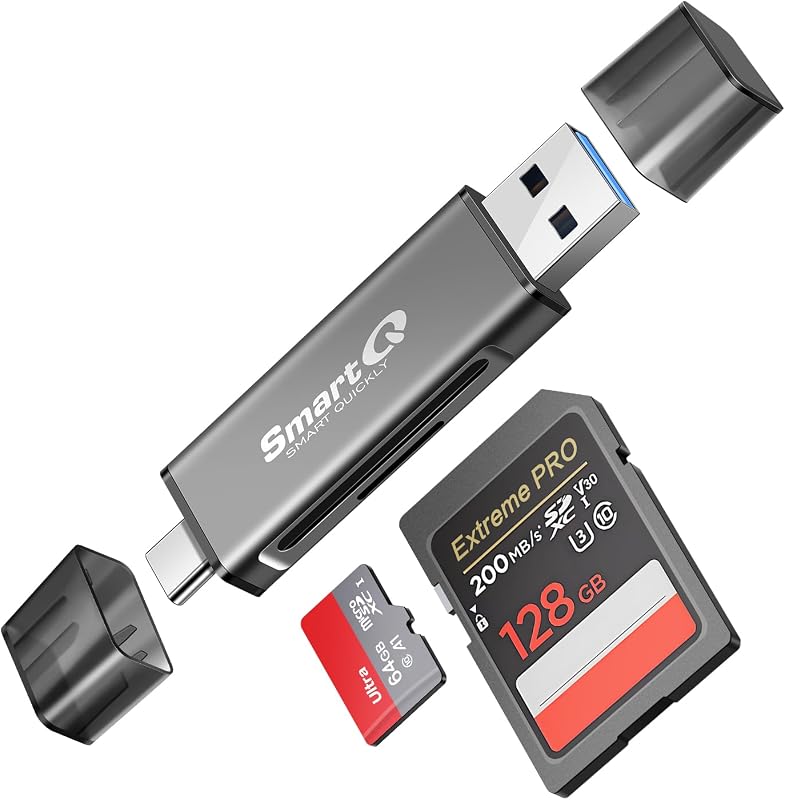
Descripción del producto Lector de tarjetas SD TF magnético barato profesional y fácil de usar pluy and play Lector de tarjetas SD TF magnético barato profesional y fácil de usar pluy and play 1. La tapa magnética es más fácil de quitar, lo que la hace más cómoda de usar y reduce el estrés operativo. 2.La interfaz multi-en-uno admite TYPE-C, USB y LIGHTNING. Es compatible con interfaces de lectura de teléfonos nuevos y antiguos, y también admite tabletas, computadoras y otros dispositivos, ofreciendo una amplia gama de interfaces. (Recuerde limpiar la interfaz con toallitas con alcohol si no se usa durante un período prolongado durante el uso). 3. Se admiten tarjetas SD para cámaras multidispositivo, tarjetas TF para drones, tarjetas TF para cámaras de tablero, tarjetas TF para cámaras de acción y tarjetas SD para cámaras Canon, Nikon, Fujifilm y otras series. Recuerda insertar primero la tarjeta y luego el teléfono durante el uso. Puede administrar archivos directamente abriendo el explorador de archivos del teléfono durante la lectura. Lector de tarjetas SD TF magnético barato profesional y fácil de usar pluy and play Lector de tarjetas SD magnético de alta velocidad Descompresión de tapa de succión magnética innovadora El lector de tarjetas SD USB con USB/USB C (tipo C)/micro USB/para iPhone/iPad/imac Le permite administrar y hacer copias de seguridad de archivos fácilmente. Administre todos los datos entre dispositivos y múltiples plataformas. Y agrega un puerto de carga (el puerto de carga agregado admite la lectura simultánea de archivos y la carga del dispositivo). Consejos: para usuarios de Android, asegúrese de que su función OTG esté abierta Cómo guardar una foto de tarjeta en su teléfono Transferencia bidireccional para usuarios de iOS con iOS 13.0 o posterior Transferencia bidireccional para usuarios de iOS con iOS 13.0 o posterior Aplicación de archivos (iOS 13 o posterior) La aplicación de archivos es una aplicación importante que puede transferir archivos entre su tarjeta de memoria a su iPhone y iPad. Los datos de su iPhone están "en mi iPhone" y los datos de la tarjeta de memoria están en "Sin mosaico" (o "NONAME", que es el nombre de su tarjeta de memoria). Puede ver datos y transferirlos entre la tarjeta de memoria y el iPhone. La aplicación de archivos no solo puede administrar videos y fotos, sino que también administra música, PDF, Word o Excel, etc. 1. Inserte una tarjeta de memoria en el lector. Encienda el iPhone y el iPad y conecte el lector al puerto Lightning. 2. En iPhone y iPad, abra la aplicación "Archivos". Puede ver los archivos en su tarjeta de memoria. Puede ver la mayoría de archivos como jpg, MP3, Word, Excel, PPT, etc. Si puede ver los archivos pero no puede abrirlos, es posible que deba descargar una aplicación de terceros para leer este archivo. 3. Puede eliminar archivos o copiar y pegar archivos desde la tarjeta de memoria a su iPhone o iPad. O copiar archivos desde iPhone o iPad a la tarjeta de memoria. 4. Si puede ver los datos, pero no puede abrirlos, deberá descargar una aplicación de terceros para abrirlos. 5.Durante el uso, primero debe insertar la tarjeta SD o TF antes de insertarla en el teléfono. Sólo después de que se complete la transferencia de datos podrá retirar el lector de tarjetas. Cómo transferir datos de un teléfono móvil a una tarjeta de memoria Cómo transferir datos de un teléfono móvil a una tarjeta de memoria El primer paso es abrir el álbum, luego mantenga presionada la foto, seleccione la imagen que desea guardar, haga clic en la flecha hacia arriba para compartir como se muestra arriba y guárdela en la carpeta nombrada en su tarjeta de memoria. Multi-en-uno con múltiples interfaces que admiten tarjetas SD y TF. Las cámaras Canon, Nikon y los drones pueden admitir tarjetas SD y TF. Las tarjetas para grabadoras dashcam son compatibles. Tenga en cuenta que actualmente el sistema telefónico solo admite formatos de video estándar como MP4 y MOV, y formatos de imagen como JPG y PNG. Es posible que el teléfono no reconozca otros formatos no convencionales; deben convertirse a un formato compatible con el teléfono dentro del dispositivo de la cámara. Los lectores de tarjetas magnéticas son más fáciles, convenientes y creativos de operar. Compatibles con iOS, Android, Windows y otros dispositivos móviles como teléfonos inteligentes, tabletas y computadoras. Para iOS, la versión del sistema de software debe ser 13.0 o superior. Para Android, el dispositivo debe admitir la funcionalidad OTG. Para Windows, la función USB debe estar en condiciones normales de funcionamiento. Nota: Para quitar la tarjeta SD o TF, primero debe presionarla hacia abajo y luego sacarla; no lo tire directamente. Ofreceremos más opciones de color para satisfacer las necesidades de diferentes grupos de personas. Es conveniente llevarlo al salir. Al abrir la tapa de la ranura para tarjetas TF/SD, ¿qué puedo hacer si no veo nada en mi iPhone? 1. Si no ves nada, no te preocupes. La aplicación no aparecerá automáticamente; acceda a la aplicación "Archivos". Luego verá "En mi iPhone", que son los datos de su iPhone. Si conecta una unidad flash USB, una tarjeta SD o una tarjeta TF a su iPhone a través de este adaptador, se mostrará "Sin título" o "NONAME" debajo de "En mi iPhone". “Sin título” o “NONAME” son el nombre predeterminado de la mayoría de las tarjetas de memoria. Si su tarjeta de memoria se llamaba "ABC", verá "ABC" allí. Simplemente toque "ABC" y verá lo que hay dentro de su tarjeta de memoria. 2. Cuando ingresa a la carpeta "ABC", tiene tres opciones en la parte inferior de la pantalla. "Recientes", "Compartido" y "Examinar", asegúrese de elegir "Examinar". Otras dos opciones no están en tu memorando
Agregás al carrito
Sumás este y otros productos que querés traer.
Cotizás el envío
Calculamos flete aéreo y aranceles a Argentina.
Confirmás y pagás
Online con tarjeta, o por transferencia, con el total final a la vista.
Lo recibís en casa
Seguimiento en tiempo real. El despacho lo hacemos nosotros.
Los mejor puntuados del mismo tipo de producto
Mismo tipo de producto y precio parecido