Cargando el producto…

Precio de origen
$ 17.620
+ flete e impuestos
Compra protegida
Puerta a puerta
Gestión aduanera
Tu compra, acompañada de principio a fin
Todo esto está en los Términos y Condiciones. Leerlos
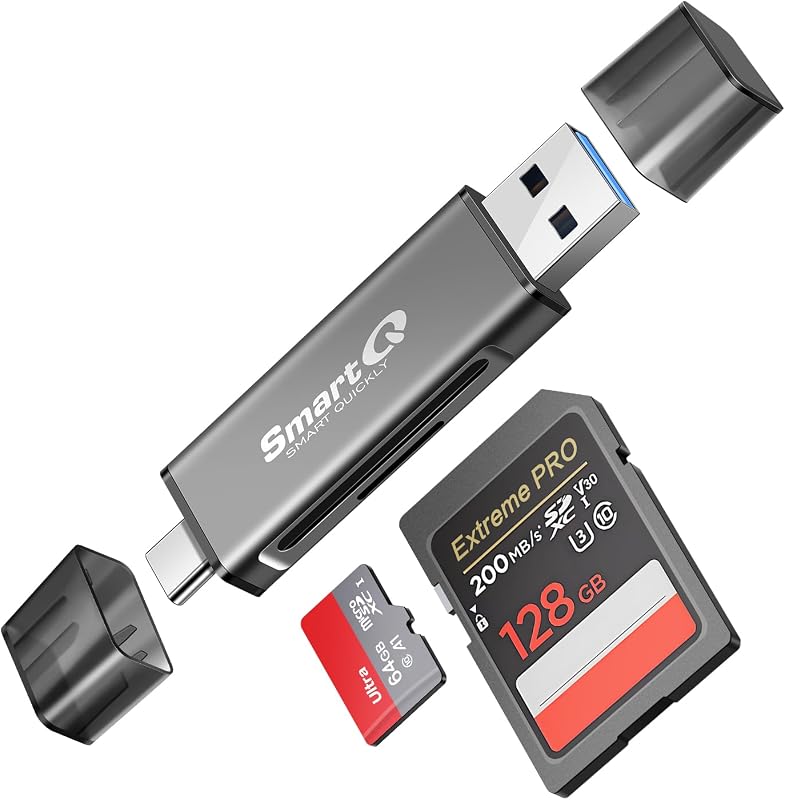
Product description Plug and play, all-in-one high-speed card reader Plug and play, all-in-one high-speed card reader 1.Plug-and-play, 2.supports multiple interfaces including lighting, TYPE-C, and USB, 3.offers high-speed data transfer, 4.compatible with SD and TF cards, ideal for cameras, drones, action cameras, and car dash cams, 5.features dustproof design. 6.The indicator light flashes during data reading to more intuitively display the working status. The advantages of a card reader include compatibility and everyday usability. The camera drone is compatible with both SD and TF cards. Canon, Nikon cameras, and drones can all support SD and TF cards. The cards for dashcam recorders are compatible. Note that the phone system currently only supports standard video formats such as MP4 and MOV, and image formats such as JPG and PNG. Other unconventional formats may not be recognized by the phone; they need to be converted to a phone-compatible format within the camera device. Compatible with all OTG phones, iPhones, and tablets. Compatible with iOS, Android, Windows, and other mobile devices such as smartphones, tablets, and computers. For iOS, the software system version must be 13.0 or higher. For Android, the device must support OTG functionality. For Windows, the USB function must be in normal working condition. It's more convenient to carry when going out. It is convenient to carry when going out. When opening the cover of the TF/SD card slot, you need to press it down instead of pulling it directly; pulling it directly requires a lot of force, while pressing it down slightly allows it to open easily. The main function of the cover is to prevent dust and air oxidation from causing poor contact in the card slot when the card reader is not in use, thereby extending the product's lifespan. How to save a card photo to your phone Two-way transfer for iOS user with iOS 13.0 or later Files App ( iOS 13 or later) Files app is an important app which can transfer files between your memory card to your iPhone & iPad. Data from your iPhone is “on my iPhone” and data of memory card is on “Untiled” (or "NONAME", which is the name of your memory card) You can view data and transfer the data between memory card and iPhone. Files app not only manager can videos and photos, but also manage music, PDF, word, or Excel, etc. 1. Insert a memory card into the reader. Turn on iPhone & iPad and attach the reader to the Lightning port. 2. On iPhone & iPad, open “Files” app. You can view the files in your memory card. You can view most files like jpg, MP3, word, excel, ppt and so on. If you can view the files but can’t open it, you may need to download a third-party app to read this file. 3. You can delete files or copy and paste files from memory card to your iPhone or iPad. Or coy files from iPhone or iPad to memory card. 4. If you can see the data, but not able to open it, you need to download a third-party App to open it. 5.During use, you must insert the SD card or TF card first before inserting it into the phone. Only after data transfer is complete can you remove the card reader. Plug and play bidirectional data transmission Plug and play bidirectional data transmission The first step is to open the album,Then long press the photo, select the picture you want to save, click the upward sharing arrow as shown above, and save it to the folder named on your memory card. Important Note: What can I do if I see nothing on my iPhone? 1. If you don’t see anything, don’t worry. App won’t pop up automatically, please access “Files” App. Then you will see “On My iPhone” which is the data on your iPhone. If you connect a USB flash drives, or a SD card or a TF card to your iPhone through this adapter, “Untitled” or “NONAME” will be shown below “On My iPhone”. “Untitled” or “NONAME” are the default name of most memory card. If your memory card were named “ABC”, you will see “ABC” there. Just tap “ABC” you will see what’s inside your memory card. 2. When you get inside “ABC” folder, you have three choices at the bottom of the screen. “Recents”, “Shared” and “Browse”, make sure you choose “Browse”. Other two choice is not what’s in your memory card. 3. If there is no “Files” App, please download it from App Store. “Files” is an App in your iPhone, usually you don’t have to download it. 4. If you still see nothing, make sure the memory card is correctly inserted into the slot. You can check the video if you have no idea how to insert a memory card. The memory card must be Fat32 or exFat format. If NTFS, iPhone will not be able to recognize it. 5. You can view most files like jpg, MP3, word, excel, PDF, etc. directly and read them without any problem. However, if you can see some data there but can't open it, you need to download a third-party app to read this file. It is the same thing as what’s happening in your computer, if you don’t have a MP3 player, even you have a MP3 file in your computer, you click it and it will not able to be pl
Agregás al carrito
Sumás este y otros productos que querés traer.
Cotizás el envío
Calculamos flete aéreo y aranceles a Argentina.
Confirmás y pagás
Online con tarjeta, o por transferencia, con el total final a la vista.
Lo recibís en casa
Seguimiento en tiempo real. El despacho lo hacemos nosotros.
Los mejor puntuados del mismo tipo de producto
Mismo tipo de producto y precio parecido